Products
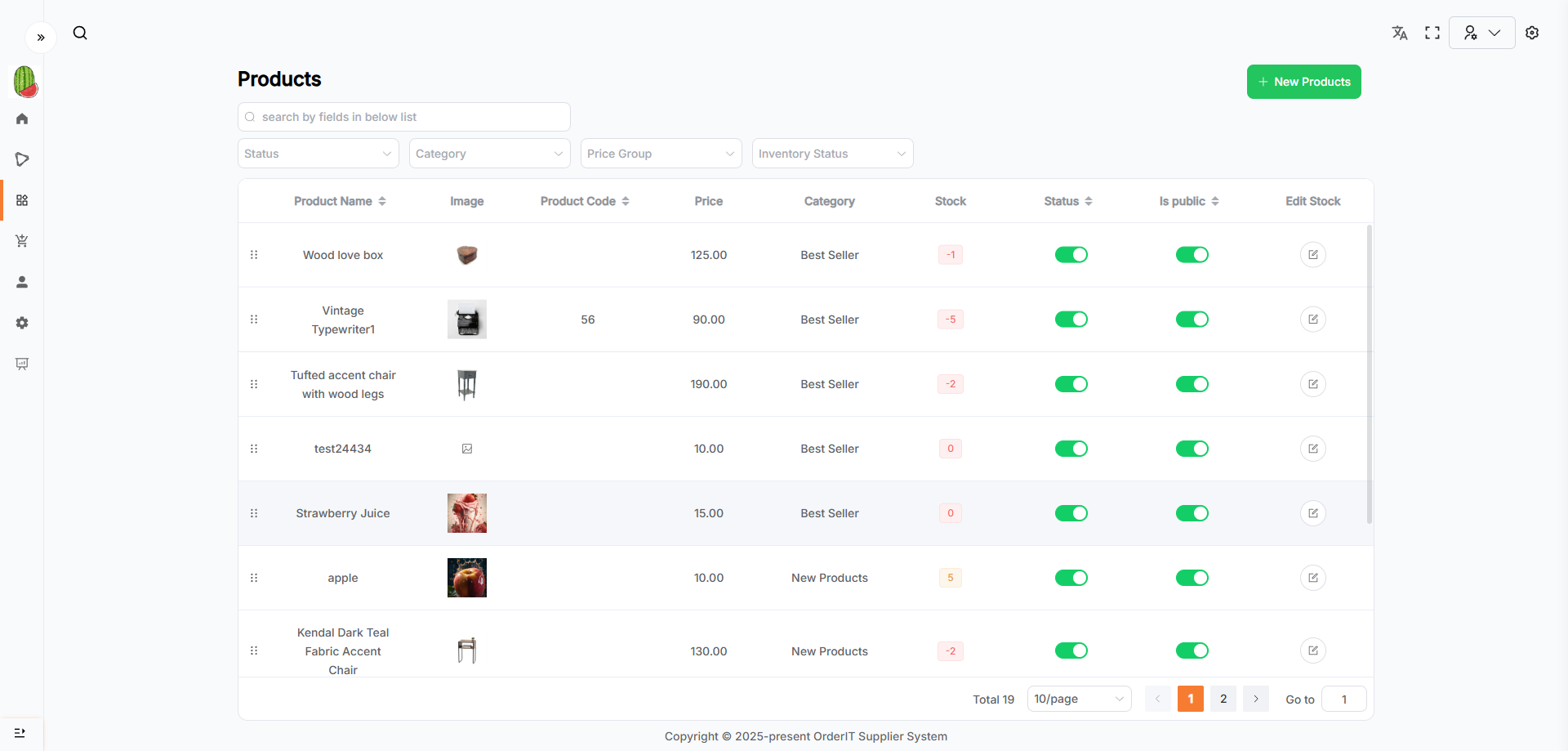
This page displays product data in a list format.
Features
- The search area supports fuzzy search by entering keywords or filtering via dropdowns. You can also combine multiple filters.
- Click the New Product button to navigate to the Add Product page.
- Click on a row in the list to view the corresponding product details.
- A paginator is located in the bottom right to display data in pages.
- The Status column controls the product's status. If the status is set to
Deactivate, the product (if already synced to Wordpress) will be disabled and cannot be selected when placing an order. - The Is Public column determines whether the product is publicly visible.
- Click the arrow in the table header to sort by fields. Supports multi-field sorting (based on the click order).
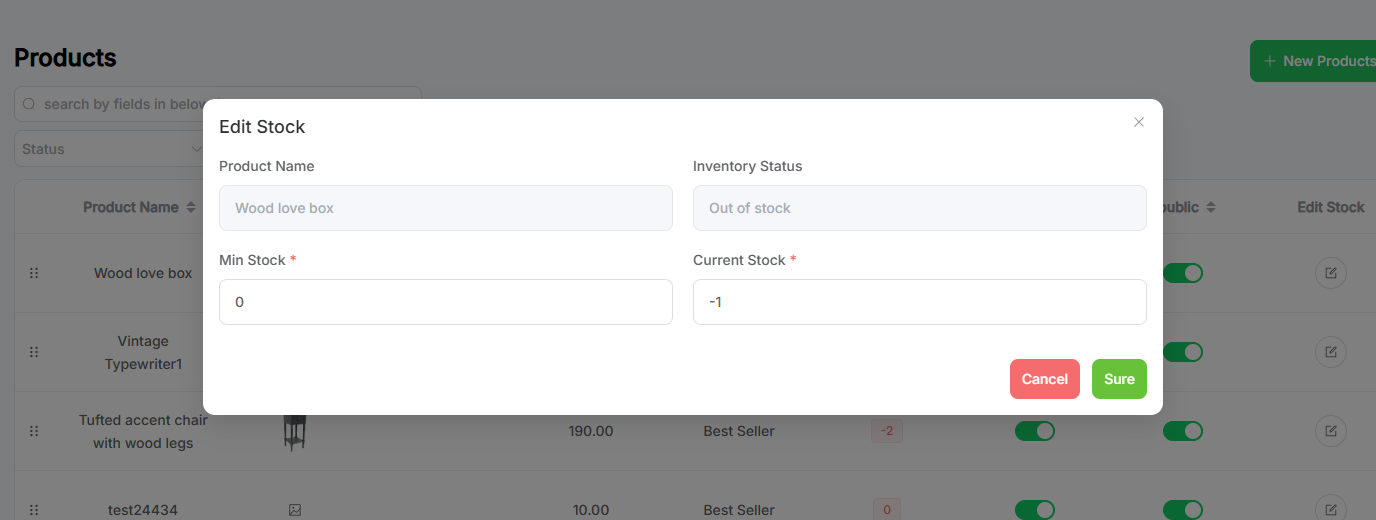
- The Edit Stock column allows quick inventory edits. Clicking it will bring up a popup window as shown below:
Add Product
This page allows you to add a new Product.
-
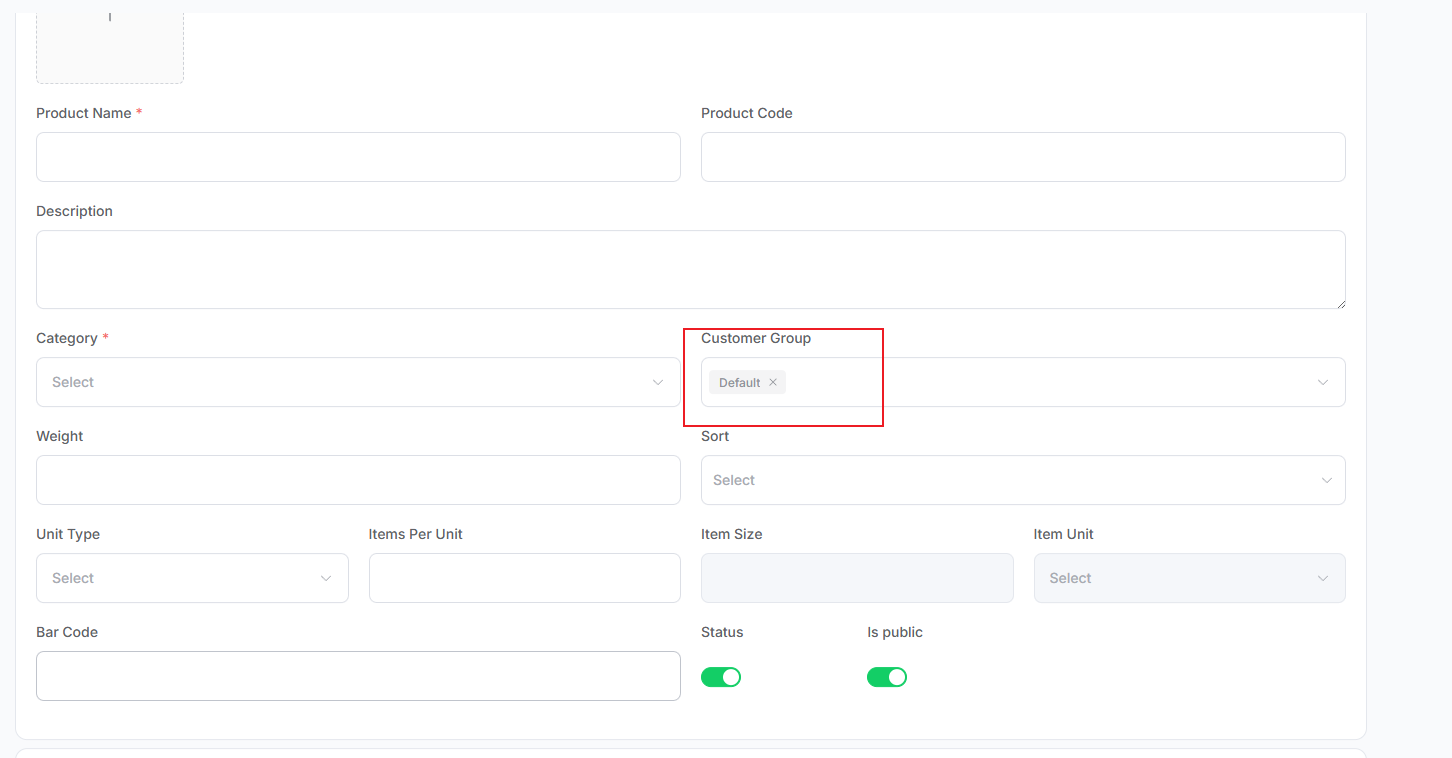
Fill in the Product Detail section. Pay special attention to the Customer Group field:
If a Customer Group is selected, only Customers in that group will see the product.
Products assigned a Customer Group will not be synced to Wordpress.
For example, if the Product is assigned to the Default group, only customers in the Default group will see it.
-
Fill in the Sale Price section. You can configure the number of price tiers in Business Setting → Product Price Groups.
Pricing priority is as follows:- If Special Offer is not empty and greater than 0, it takes priority;
- If Special Offer is empty, pricing will be based on the Customer's assigned Price Group.
-
Fill in the Product Extra section. Labels and quantity of extra fields can be configured in Business Setting → Product Extra Fields.
-
Click the Save button to submit. If Customer Group is empty and Wordpress is properly configured, the product will sync to Wordpress.
Click Cancel to clear the form and return to the list page.
💡 Tip: A corresponding
Inventoryentry is automatically created when aProductis successfully added.
Product Details & Editing
This page displays the saved product information and allows editing or deletion.
-
The page defaults to read-only mode. Click Edit to enable editing. Any changes must be saved using the Save button. The page will return to read-only mode after saving.
-
If a Customer Group is selected and the product is already synced to Wordpress, it will be removed from Wordpress;
if the Customer Group is removed, it will be added back to Wordpress. -
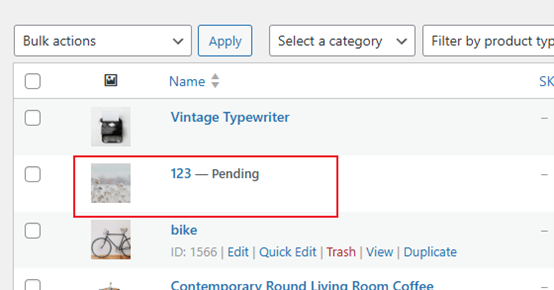
If the Status field is changed to
Deactivateand Customer Group is empty, the product’s status on Wordpress will becomePending.
-
In read-only mode, click the Delete button in the bottom-right corner to delete the product. A confirmation dialog will appear.
Click Yes to confirm deletion. Upon success, you’ll return to the list page (this action is irreversible).
Click No to cancel and close the dialog.
⚠️ Categories associated with the Product cannot be deleted.