Customers
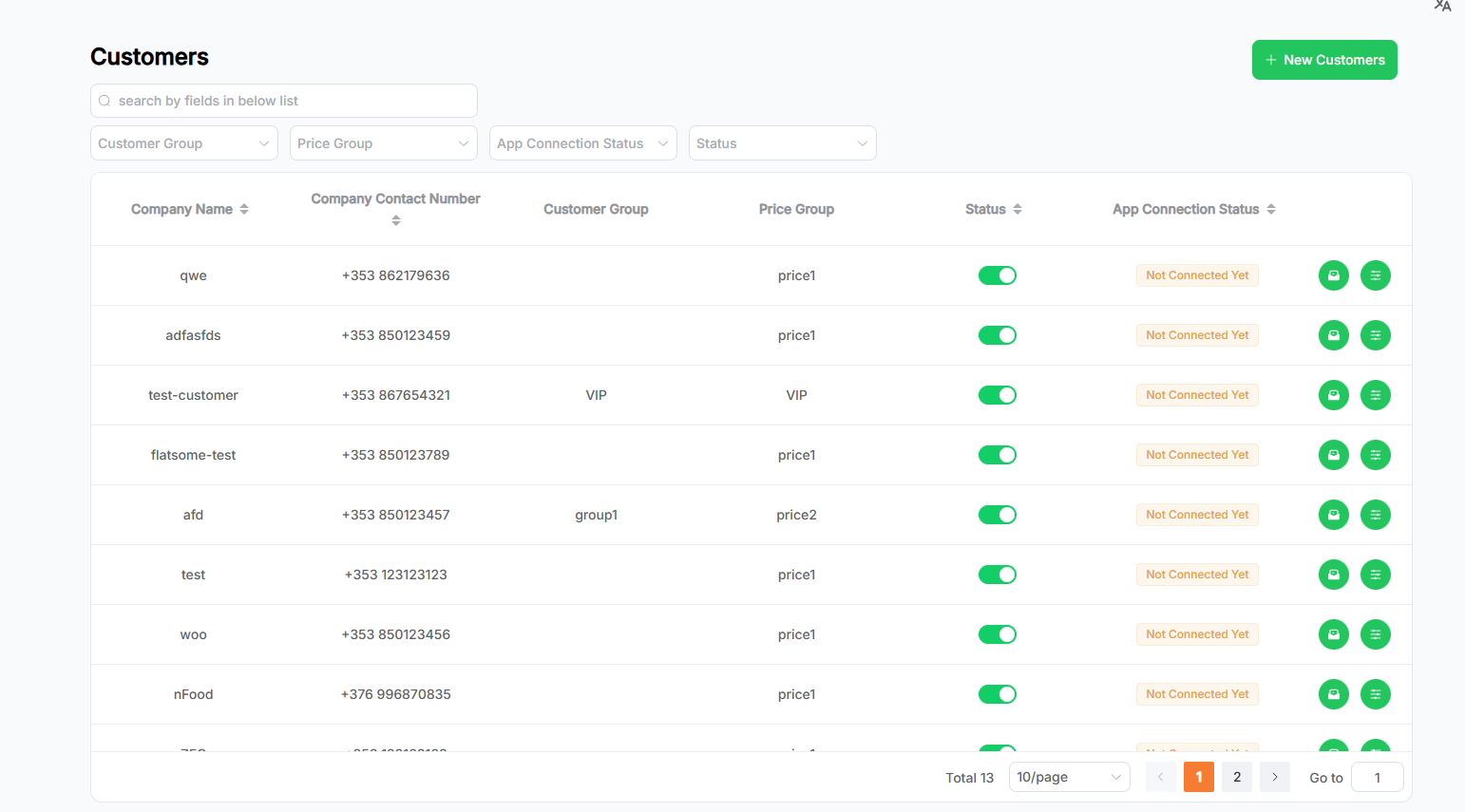
This page displays the customers data in a table format.
In the Customers module, pay attention to the Customer Group and Price Group fields of each Customer:
- Customer Group controls which products the Customer can see.
- Price Group controls the pricing of the products the Customer can view.
Features
- The search area supports fuzzy search using keywords, filtering through dropdowns, or a combination of both.
- Click the arrow in the table header to sort data by the corresponding field. Multi-field sorting is supported (based on the order of clicks).
- A pagination component is located at the bottom-right corner of the table for paginated display.
- Click the New Customers button to navigate to the "Add New Customer" page.
- Click on a row in the list to navigate to the Customer's detail page.
- The Status column uses a
Switchtoggle to enable or disable the Customer. Customers with Status set toDeactivatecannot place orders. - Buttons on the far right of each row:
- Invite: Invite the Customer to use the OrderIT App (when there are multiple contacts, all will be invited).
💡 Tip: Customers not in the
Connectedstatus can be invited repeatedly. - Show Orders: Navigate to the Orders page and display the selected Customer's order history.
- Invite: Invite the Customer to use the OrderIT App (when there are multiple contacts, all will be invited).
Add New Customer
This page allows you to create a new Customer.
- Fill in the required fields in the form.
- Optional fields can be completed as needed.
- Click the Save button to submit. Upon success, you will be redirected to the list page.
- Click the Cancel button to clear the entered form data and return to the list page.
Customer Details & Edit
This page displays the details of a saved Customer and allows editing or deletion.
- The page initially opens in read-only mode. Click the Edit button to enable editing. After making changes, click Save to apply them. The page will return to read-only mode upon successful save.
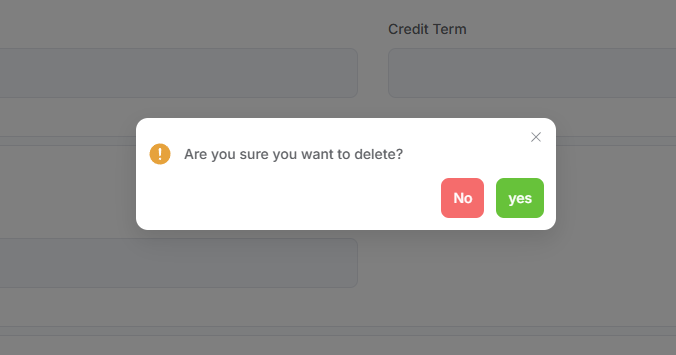
- In read-only mode, click the Delete button in the bottom-right corner to delete this Customer:
- A confirmation popup will appear;
- Click Yes to confirm deletion. Upon success, you will return to the Customer list. This action is irreversible;
- Click No to cancel and close the popup.