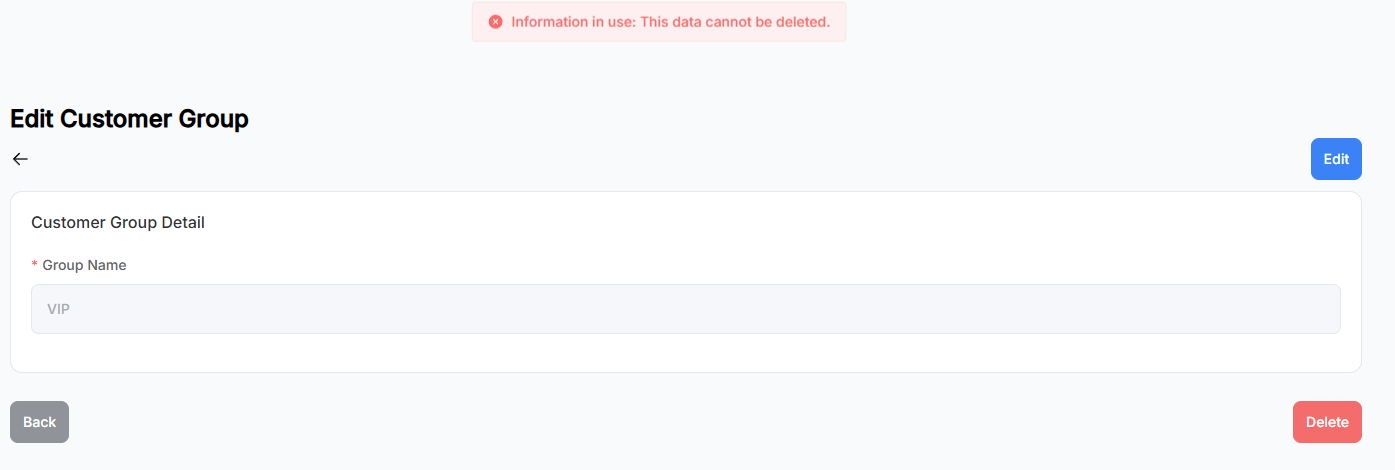
Customer Group
This page displays all Customer Group data in a table format.
Features
- Use the search bar to perform fuzzy searches using keywords.
- Click the New Customer Group button to navigate to the Add Customer Group page.
- Click on any row in the list to navigate to the corresponding Customer Group details page.
- The paginator at the bottom-right of the list is used for paginated data display.
- Click sortable fields in the table header to sort. Multi-field sorting is supported (based on the order of clicks).
Add Customer Group
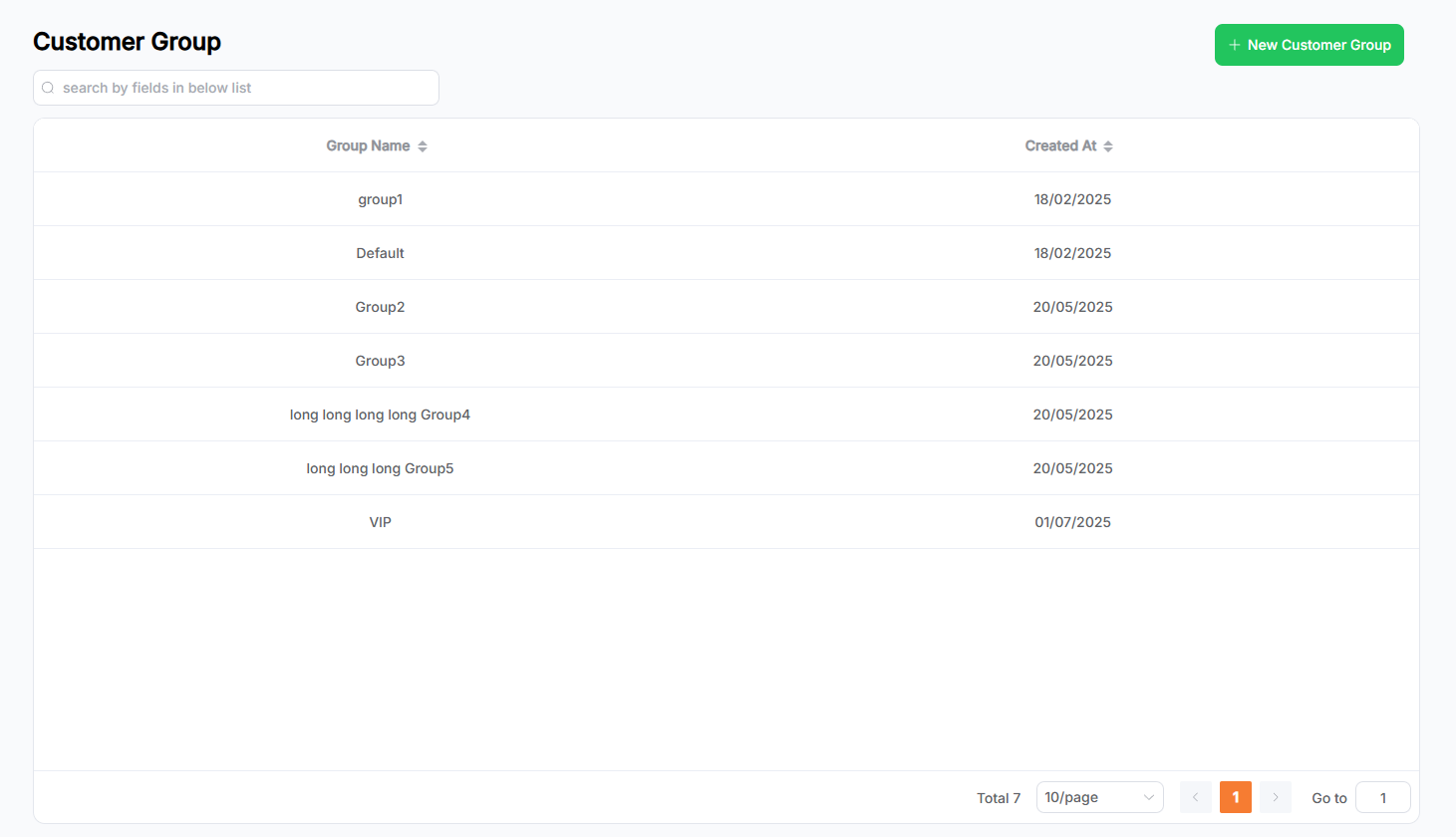
This page allows you to create a new Customer Group.
- Fill in the form fields as needed.
- Click the Save button to submit. After successful submission, you will be redirected to the list page.
- Click the Cancel button to clear the form and return to the list page.
Customer Group Details & Edit
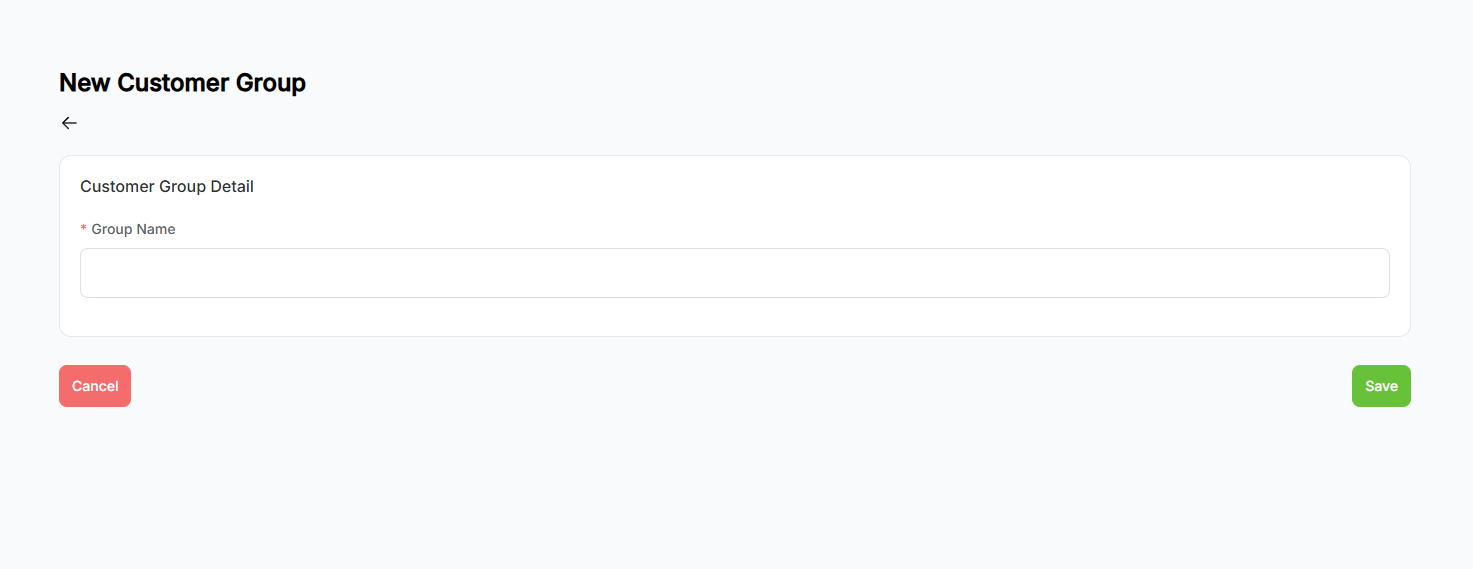
This page displays the saved Customer Group data. You can update or delete a group. Groups associated with Customers cannot be deleted.
- The page enters read-only mode by default. Click the Edit button to enable edit mode and update the Customer Group information. Changes will only take effect after clicking Save. The page returns to read-only mode after saving.
- In read-only mode, click the Delete button in the bottom-right corner to delete this Customer Group:
- A confirmation popup will appear;
- Click Yes to confirm deletion. After successful deletion, you will be redirected to the Customer Group list. This action is irreversible;
- Click No to cancel the deletion and close the popup;
- Note: Customer Groups that are associated with Customers cannot be deleted.