Orders
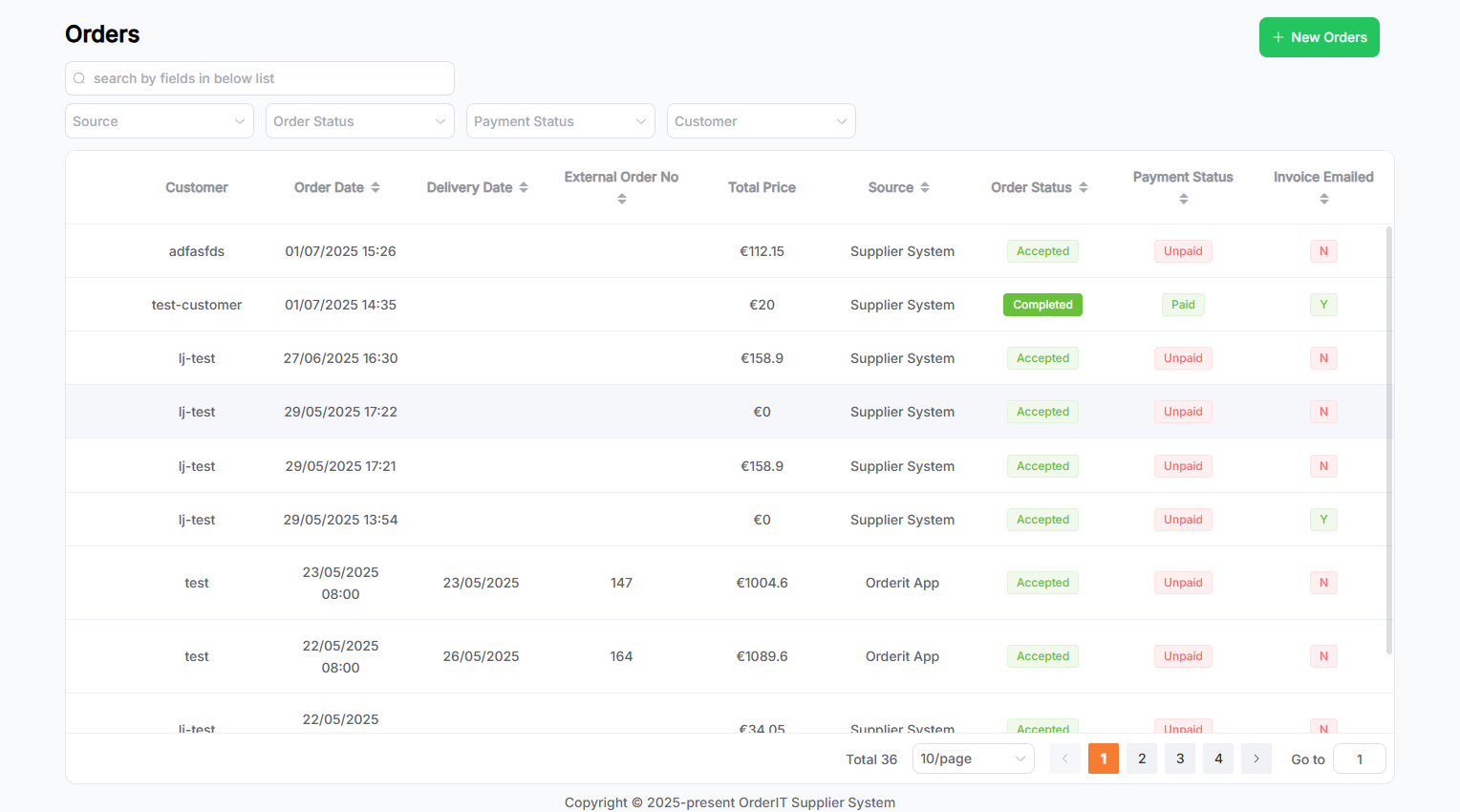
This module is mainly used to manage orders. The page displays data in a list format:
Features
- The search area supports keyword-based fuzzy search and dropdown filters. Filters can also be combined.
- Click the New Orders button to navigate to the Add Order page.
- Click on a row in the list to view the corresponding order details.
- A paginator is located in the bottom right corner to display data in pages.
- Click the arrow in the table header to sort by fields. Multi-field sorting is supported based on the click order.
- The
Invoice Emailedcolumn indicates whether an invoice email has been sent. - All screenshots below use test data.
Add Order
This page allows you to create a new Order.
-
Select Invoice To

-
Fill in Route and other related information

-
Click Add Product to add items to the order

-
Fill in other relevant information
-
Click the Save button to submit. Upon success, you will be redirected to the list page.
Click Cancel to clear the entered information and return to the list page.
Order Details & Editing
An order has two main statuses: Order Status and Payment Status
- Order Status:
Pending,Accepted,Rejected,Completed - Payment Status:
Unpaid,Partially Paid,Paid
Only orders with a
Pendingstatus can be deleted.
Orders withAcceptedorCompletedstatus can download invoices.
The Invoice button is a dropdown with the following options:
- Print Invoice: Print the invoice directly.
- Download Invoice: Download the invoice as a PDF.
- Send Invoice: Email the invoice to a specified address.
Status Operation Instructions
-
When
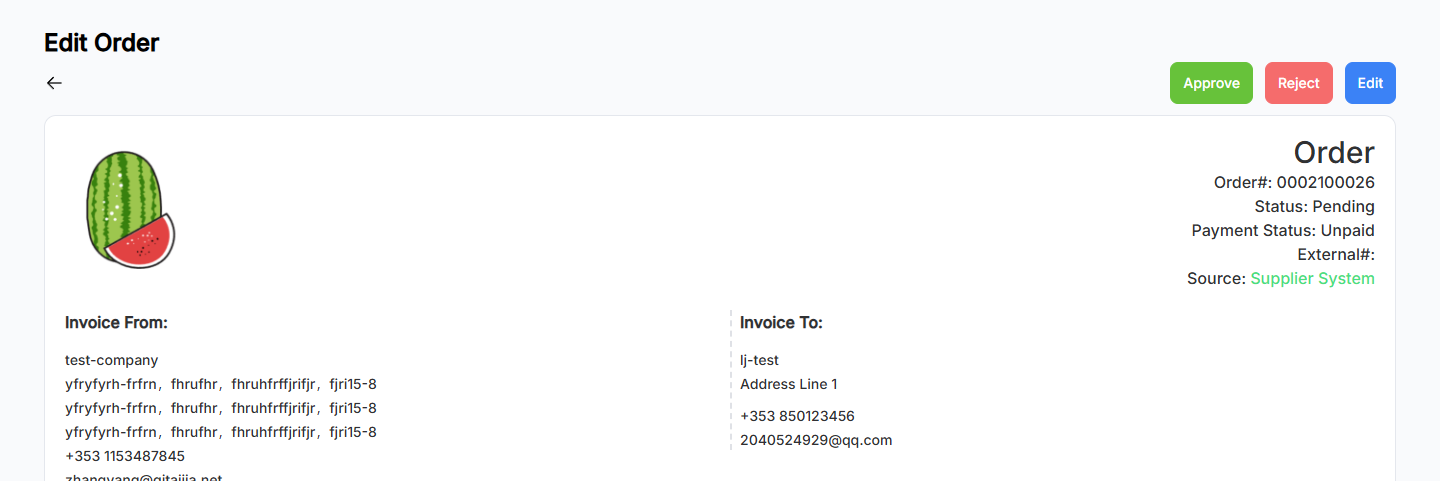
Order StatusisPending, the top right shows three buttons:- Approve: Approve the order
- Reject: Reject the order
- Edit: Edit the order
-
When
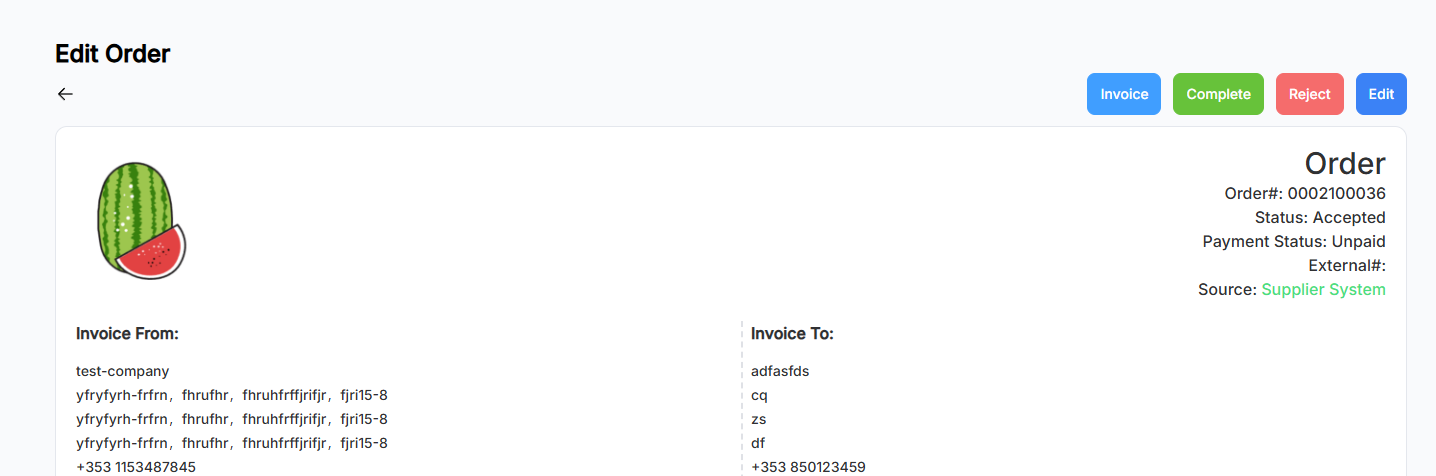
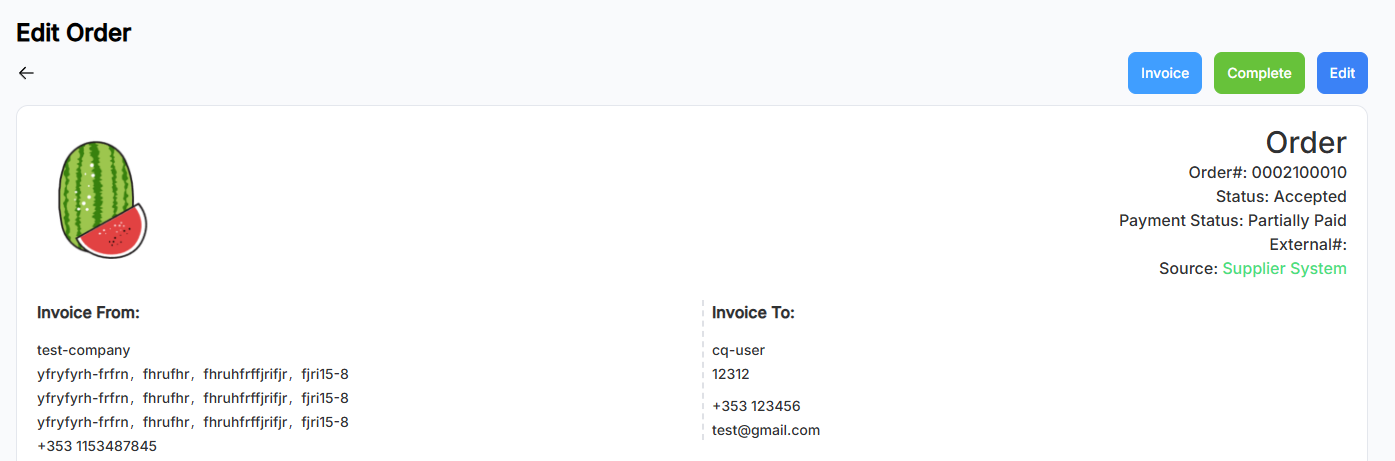
Order StatusisAcceptedandPayment StatusisUnpaid:- The order can still be rejected
- Clicking Completed indicates that payment has been made or partially made
- Once payment is completed, the order can no longer be rejected
-
When
Order StatusisRejected:- You can click Approve again to accept the order
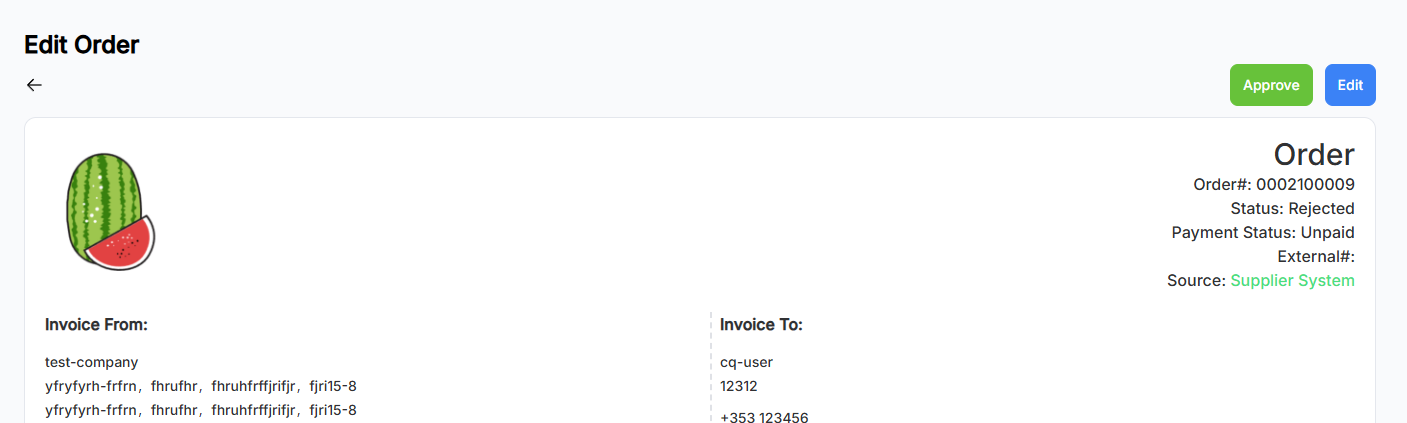
- You can click Approve again to accept the order
-
When
Order StatusisCompleted:- Only the Invoice dropdown button remains on the page
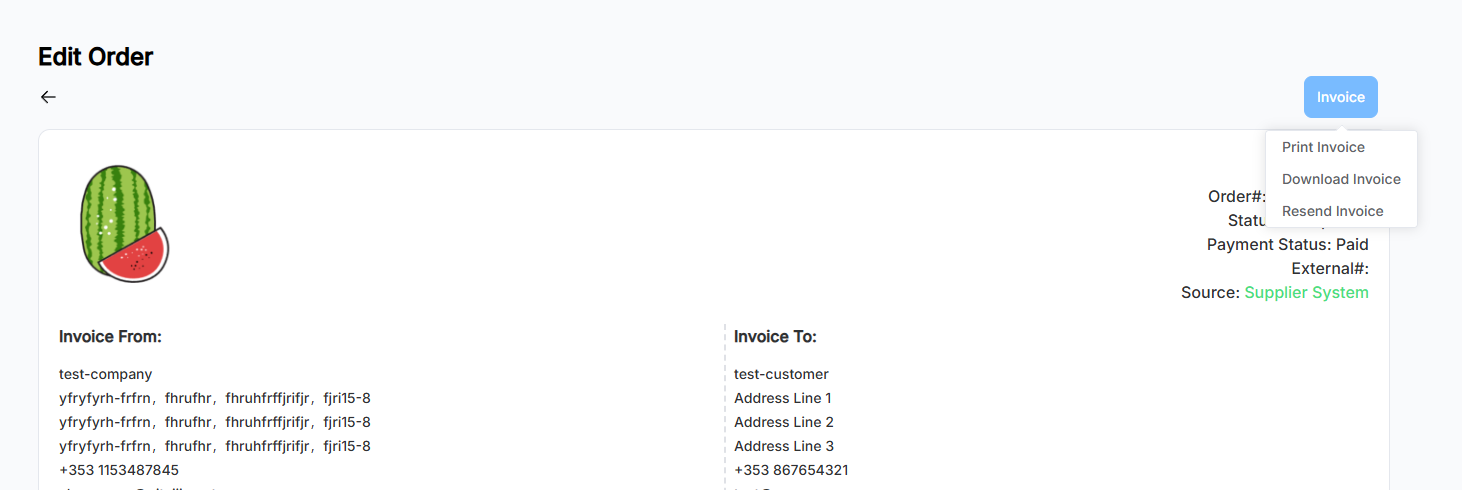
- Only the Invoice dropdown button remains on the page